
How to fix common issues with Proton Pass
- Reading
- 2 mins
- Category
- Using Proton Pass
This article covers solutions to common issues that you might encounter while using Proton Pass. If the issue you’re facing is not listed here, please contact our support team for further assistance.
1. The Proton Pass extension or web app doesn’t work in Enhanced Security Mode on Microsoft Edge
In this mode, WebAssembly (WASM)(new window) is disabled. As Proton Pass depends on WASM, the extension and web app won’t automatically work in this mode.
To use the Proton Pass extension or web app in Enhanced Security Mode, you’ll need to take the following steps:
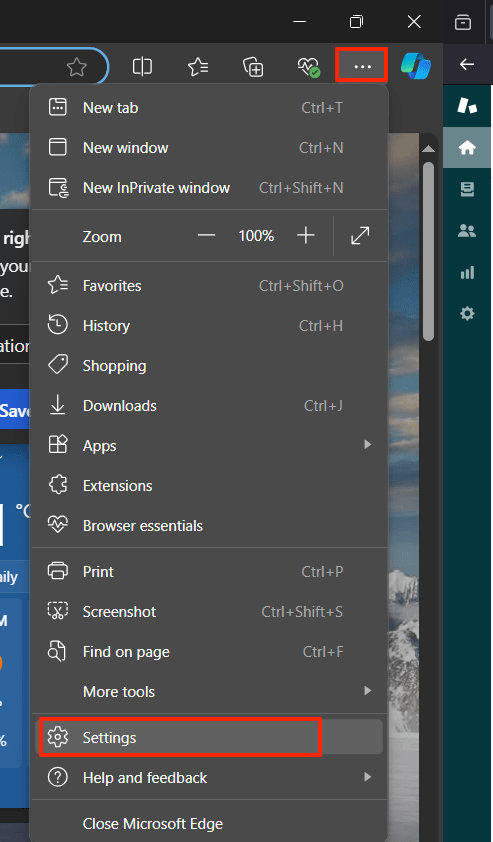
- Open Edge and click on the three dots in the top right corner → Settings.
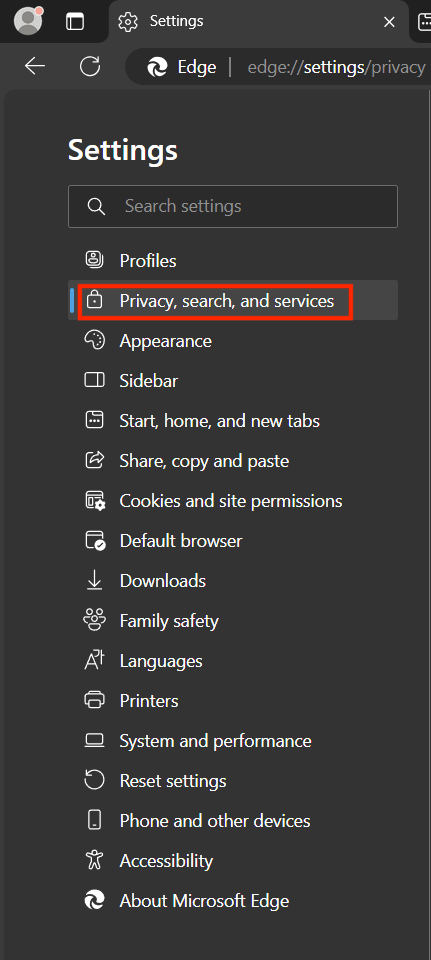
- Click Privacy, search, and services.
- Scroll to the Enhanced security section, and click Manage enhanced security for sites.

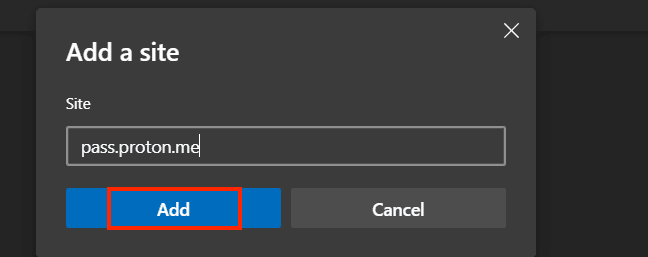
- Under Never use enhanced security for these sites, click Add a site to add pass.proton.me, then click Add.

2. The Pass extension or web app doesn’t work in Safari Lockdown Mode
Similar to the Enhanced Security mode in the Edge browser, WASM is also disabled in Lockdown Mode in Safari. To use the Proton Pass extension or web app in this mode, you’ll need to whitelist the Proton Pass URL.
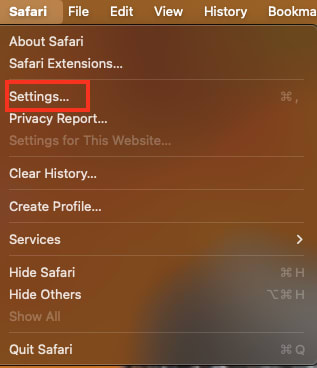
- To whitelist a website in Lockdown mode, select Safari → Settings
- Select Websites and then select Lockdown Mode in the column labeled General. You’ll see pass.proton.me → toggle the Lockdown Mode setting to Off.
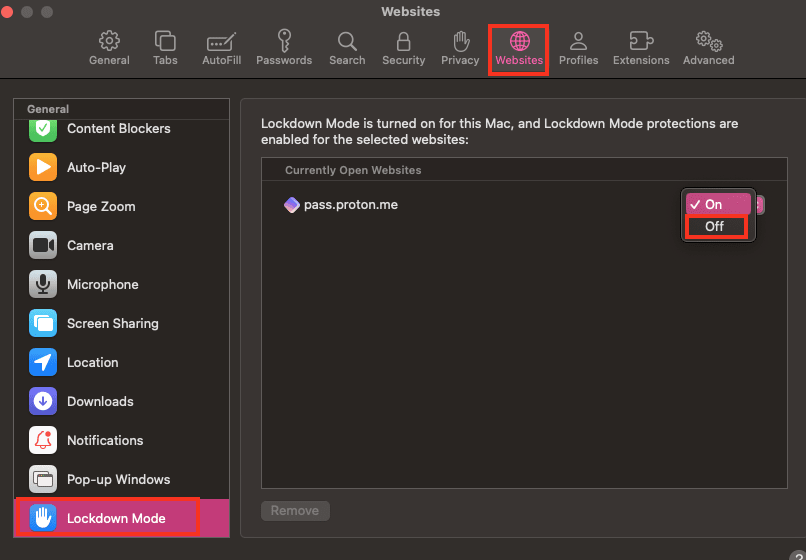
- Safari will ask you to confirm that you want to turn off Lockdown Mode.

3. Proton Pass on Android is showing a blank screen
If you’re seeing a blank screen, your filters may be the issue: you can reset your filters to check. To reset your filters, click on the three dots in the top right corner → Select Reset filters.

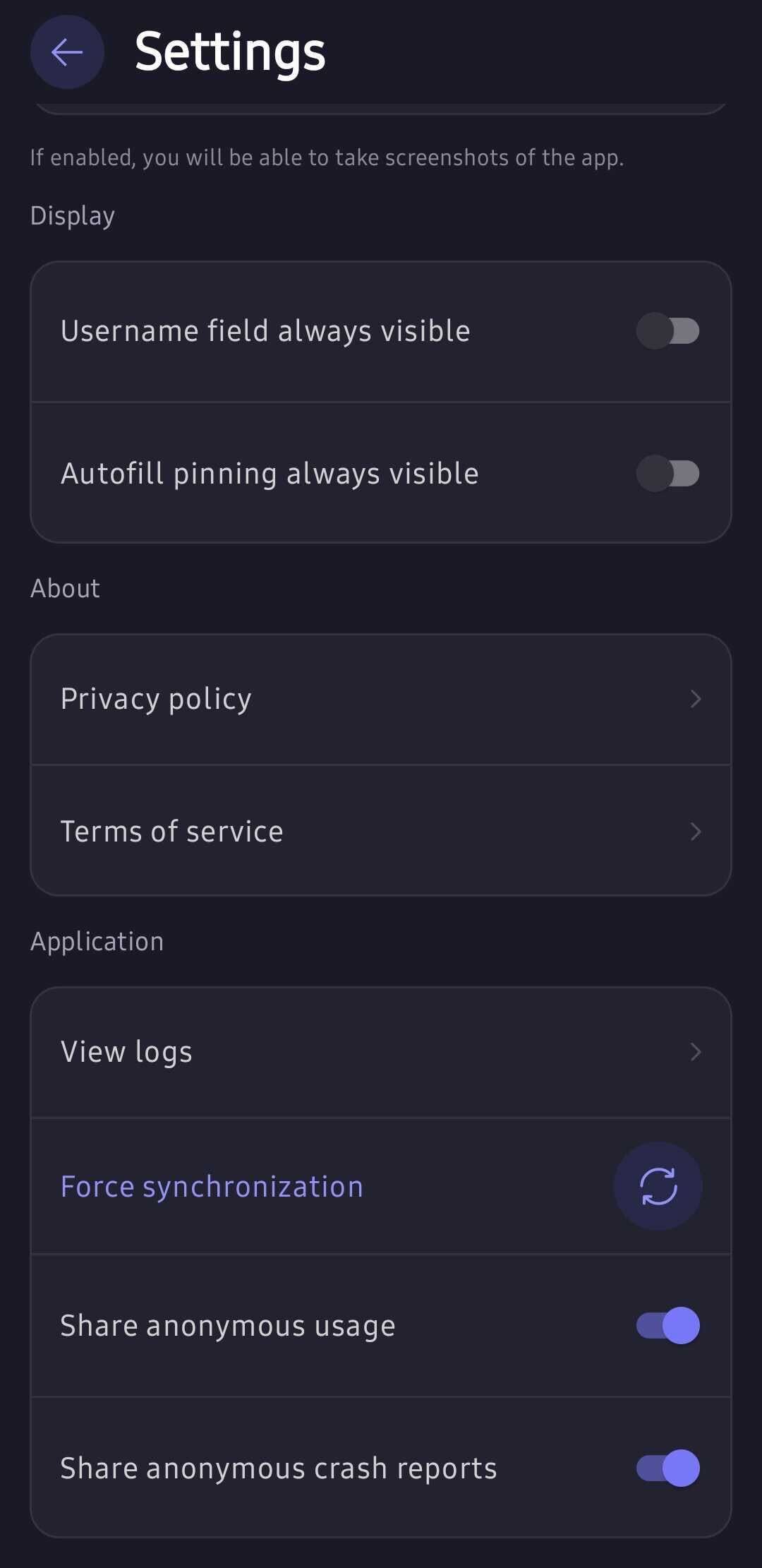
If you’re still seeing a blank screen, there may be a synchronization issue. To synchronize all of your data, click Profile → Settings → Force Synchronization.
4. Some Proton Pass items are missing or out of sync between your apps
If you notice that some of your items aren’t appearing in one app, but are shown in another, you may be experiencing a synchronization issue. To resolve this, you can manually force Proton Pass to synchronize your data.
- On Android, go to Profile → Settings → Force synchronization.

- On iOS, go to Profile → Settings → Force synchronization.
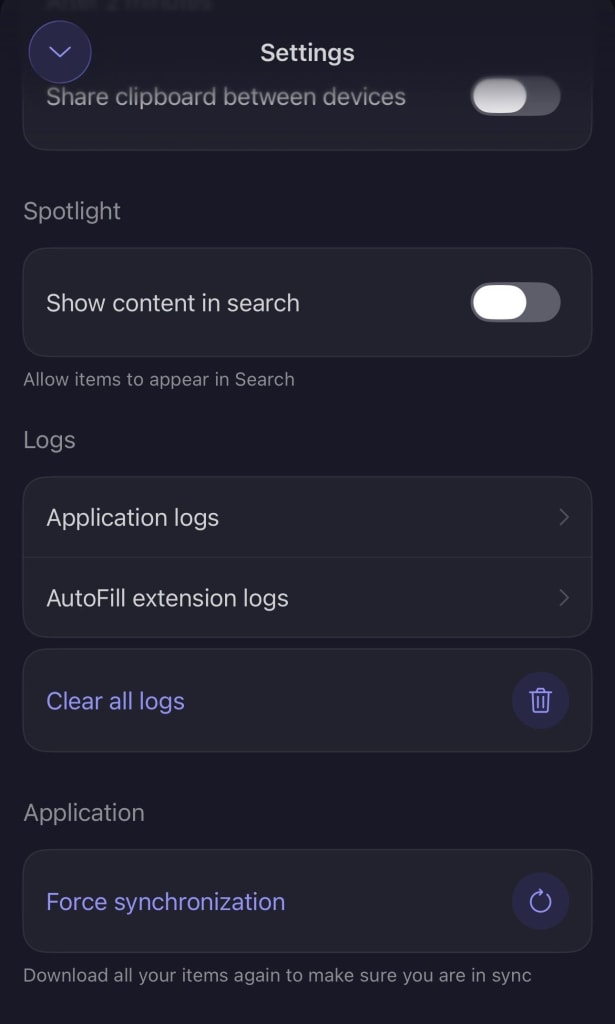
- On the Proton Pass web app and desktop app, you can access this option by navigating to Advanced → Manually sync your data.

- On the Proton Pass browser extension, you can locate the option in the hamburger menu → Advanced → Manually sync your data.
